 ~90 sec
 Set up recurring work
For work that comes back around — maintenance routes, weekly cleans, warranty visits — you shouldn’t rebuild the same list every time. Set the list to repeat, and Ziptask creates a fresh copy each cycle on its own, each one keeping its own photo record.
The video sets up a weekly maintenance run, but this fits any repeating work you do.
Plan: Recurring lists are available on Starter and up.
Steps
-
Build the list once. Make the task list with the tasks you run every time, the same way you’d make any list.
-
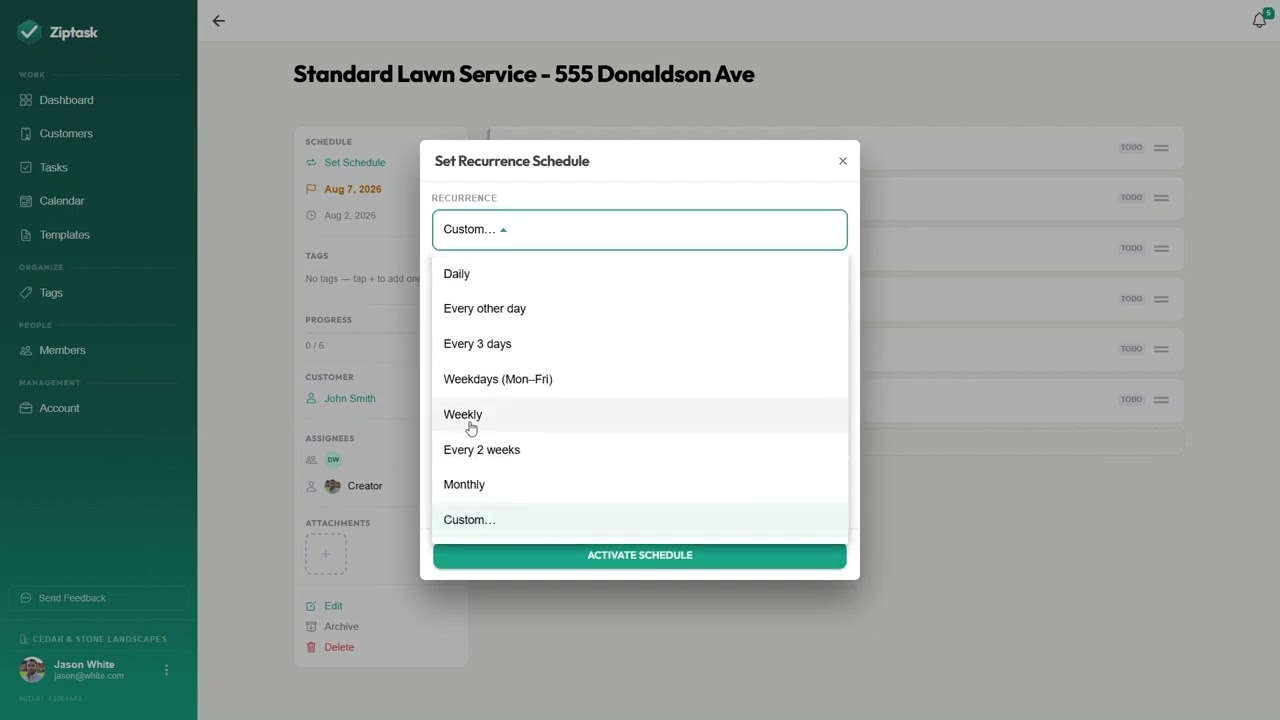
Set it to recur. Open the list and choose how often it should repeat — daily, weekly, every two weeks, or monthly. Ziptask counts from the list’s due date; if the list doesn’t have one, you’ll set a start date right there. The list now runs on a schedule.
Optional: give it an end date. Most routines run until you stop them — but if the work has a finish line (a seasonal contract, a six-week project), set an end date when you choose the schedule. Ziptask keeps creating copies through that date, then ends the recurrence on its own. You can still stop it early whenever you want.
-
Fresh copies appear on schedule. Each cycle, Ziptask spins up a new copy of the list, pre-filled and ready. Nobody has to remember to set it up — your crew just opens the current one and gets to work.
-
Each cycle stands on its own. Every occurrence is its own list, with its own tasks and photos — exactly what you want for a warranty claim: proof of what you did, and when.
Recurring lists vs. templates — they’re different tools. A template is a blueprint for quickly creating a new list, handy when you start similar jobs often — but it doesn’t run on a schedule. Recurrence is what makes a list repeat on its own. You can use a template to build the list fast, then set that list to recur.
What’s next
- Create your first task list — the basics, if you skipped ahead.
- Tasks — the full reference on recurring lists and templates.